
 Support
Google Teachable Machine: How to Train Image, Audio, and Pose AI Models in Your Browser Without Code
BrainyTools Editor
Tech Contributor at BrainyTools
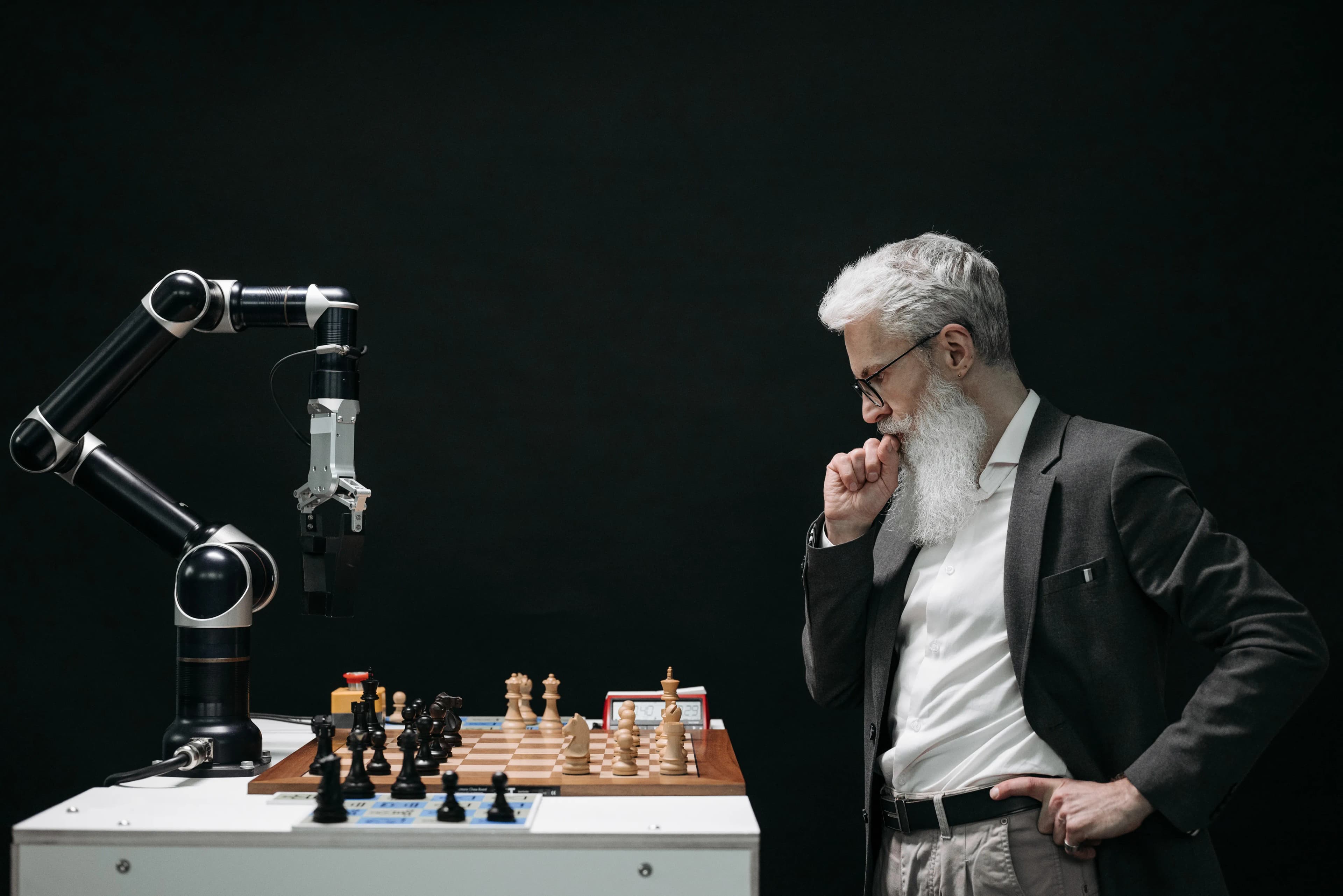
How educators, designers, students, and non-programmers can train real neural networks in minutes using nothing more than a webcam, microphone, or folder of files.
For years, training a custom machine learning model meant installing Python environments, configuring GPU drivers, and writing hundreds of lines of TensorFlow or PyTorch code. If you were a teacher, product designer, artist, or business professional with a creative idea for AI, that technical barrier often stopped projects before they began.
Google Teachable Machine removes that barrier completely. Built by Google Creative Lab on top of TensorFlow.js, Teachable Machine is a free, web-based application that lets anyone train a real deep learning model using a simple visual interface—directly inside a standard web browser, with zero coding required.
In this guide, we will explore how Teachable Machine works under the hood, the three types of models you can build, how to prepare your images and audio for high accuracy, and how to test and export your finished AI model.
What Can You Build with Teachable Machine?
Teachable Machine focuses on Supervised Classification—teaching a computer to sort inputs into distinct categories (called Classes) based on examples you provide. Currently, it supports three project types out of the box:
1. Image Projects
Teach a model to recognize objects, facial expressions, hand gestures, plant species, or product defects using photos from your webcam or uploaded image files.
- Example Use Cases: Sorting recyclable vs. compostable items, detecting whether a workshop safety helmet is worn, or classifying ripe vs. unripe fruit.
2. Audio Projects
Teach a model to recognize short sound patterns (one-second clips) using your computer's microphone or uploaded audio files.
- Example Use Cases: Detecting a finger snap vs. a hand clap, identifying bird calls, or recognizing spoken wake words like "Start" and "Stop".
3. Pose Projects
Teach a model to recognize human body postures and movements by tracking skeletal key points (shoulders, elbows, wrists, hips, knees) via a webcam.
- Example Use Cases: Counting proper squat repetitions in a fitness project, building motion-controlled accessibility switches, or detecting ergonomic slouching at a desk.
How Teachable Machine Trains So Fast: Transfer Learning
You might wonder how a normal laptop browser can train a deep neural network in 15 seconds using only 30 photos per category, when traditional AI models require millions of images and days of supercomputer time.
The secret is a technique called Transfer Learning.
Instead of starting with a blank-slate neural network that does not even know what an edge, color, or shape is, Teachable Machine starts with a pre-trained foundation model (such as MobileNet for images, Speech Commands for audio, or PoseNet for body poses). That base model has already been trained on millions of general examples to extract high-level visual or acoustic features.
When you click Train Model in your browser, Teachable Machine freezes that pre-trained knowledge and only trains the final classification layer on your specific examples. Better yet, because it runs on TensorFlow.js using your browser's WebGL graphics acceleration, your webcam feed and training files stay on your device unless you explicitly choose to upload your finished model to Google's cloud for sharing.
Step-by-Step Workflow: From Idea to Working AI
Every Teachable Machine project follows a clean, three-step pipeline: Gather $\rightarrow$ Train $\rightarrow$ Export.
[1. Gather Examples] ──► [2. Train in Browser] ──► [3. Live Preview & Export]
  (Webcam / Files)         (Transfer Learning)       (Web, App, or Hardware)
Step 1: Gather and Organize Your Classes
Start by creating at least two Classes (categories) and giving them clear names (e.g., Thumbs Up, Thumbs Down, and Neutral Background).
For each class, you can record live samples with your webcam/microphone or drag and drop existing files from your computer:
- Preparing Image Files: If you are uploading existing photos, cropping out distracting backgrounds and resizing massive camera files beforehand helps keep your dataset focused. You can quickly crop, resize, and convert photos into clean JPEG or PNG sets in your browser using our Image Editor.
- Preparing Audio Clips: For sound projects, Teachable Machine always requires a Background Noise class (at least 20 seconds of ambient room sound) so the model does not trigger falsely on silence or air conditioning hum. If you have long recordings of sounds you want to use as training data, you can trim them into clean segments and normalize volume levels with our Audio Editor.
Step 2: Train the Model
Once your classes have at least 30–50 varied samples each, click Train Model. Do not switch browser tabs while training is running, as browsers throttle background tab GPU performance.
For curious users who want to experiment without writing code, clicking the Advanced dropdown reveals three fundamental machine learning settings (hyperparameters):
- Epochs (Default: 50 for images): One epoch means the model has looked through your entire training dataset once. If accuracy is low, increasing epochs to 80 or 100 gives the model more passes to learn subtle patterns.
- Batch Size (Default: 16): How many examples the model looks at together before updating its internal weights.
- Learning Rate (Default: 0.001): How big of a step the model takes when correcting its mistakes. Keep this small—if it is too high, the model overshoots and fails to learn.
Step 3: Test in Real Time and Export
Immediately after training finishes, the Preview panel on the right activates your webcam or microphone (or lets you upload a test file) and displays real-time confidence bars from 0% to 100% for each class.
When you are happy with the performance, click Export Model:
- Shareable Link: Generate a public URL so anyone can test your model in their browser without seeing your raw training photos.
- TensorFlow.js / TensorFlow Lite / Coral: Download the trained weights for web apps, Android/iOS mobile apps, or tiny Raspberry Pi and Arduino microcontrollers.
5 Best Practices for Non-Technical Creators
Even without writing code, the quality of your machine learning model depends entirely on the quality of the examples you feed it:
| Common Mistake | Why the Model Fails | How to Fix It |
|---|---|---|
| Static Background Trap | Taking all photos of "Mug" in the kitchen and all photos of "Book" in the bedroom. The AI learns to classify the room, not the object! | Capture both objects against the exact same backgrounds and in multiple locations. |
| Missing a "Neutral / Nothing" Class | A model trained only on Cat and Dog will still guess 99% Dog when looking at an empty chair. |
Always add a third class called Background or Nothing showing empty scenes and everyday clutter. |
| Identical Angles & Lighting | Holding an object still and recording 50 nearly identical webcam frames in 2 seconds. | Rotate the object, move it closer and farther, switch hands, and vary the lighting. |
| Unbalanced Sample Counts | Providing 200 photos for Class A and only 15 photos for Class B. | Keep the number of examples roughly equal across every class so the model does not favor one category. |
| Testing Only on Training Conditions | Only testing the model in the exact chair and shirt you wore 30 seconds ago. | Have a friend test the model, or upload completely unseen photos to verify real generalization. |
Conclusion
Google Teachable Machine proves that understanding and building machine learning does not require a degree in computer science. By experiencing the cycle of gathering data, training a model, spotting biases in live previews, and refining your dataset, you build the exact same core intuition that professional AI engineers rely on every day.